
Burn videos to DVD/ Blu-ray with templates and editors.

How to Burn YouTube Videos to DVD Quickly [Desktop/Online]

Posted by Paula Pailaga to Burn DVD/Blu-ray Jun 11, 2026
Whether you want to watch YouTube videos on a widescreen TV or DVD player or make a backup of your favorite videos for permanent preservation, burning YouTube to DVD is an excellent option. If you don’t know how to burn, explore the four easy ways below in this post to discover how to burn YouTube videos to DVD using desktop and online tools. So, without further ado, explore each and learn how to make a DVD from a YouTube video!
Guide List
Read This First: Legal Reality of Downloading YouTube Videos The Best Way to Burn YouTube Videos to DVD Online Tools to Burn YouTube to DVD [Quality Loss] FAQsRead This First: Legal Reality of Downloading YouTube Videos
Read This First: Legal Reality of Downloading YouTube Videos YouTube's Terms of Service (Section 5) explicitly prohibit downloading content using third-party tools unless YouTube itself provides a download link. The exact wording: users may not access content "through any technology or means other than the video playback pages of the Service itself."
What is clearly legal:
YouTube Premium offline downloads - YouTube's own built-in feature, fully permitted. Downloaded files stay inside the app and are encrypted. You can't extract them for burning.Your own videos - Content you uploaded yourself can be downloaded via YouTube Studio.Creative Commons (CC) videos - Creators who mark their videos with a CC license explicitly permit reuse. To find them: search YouTube, click Filters, select Creative Commons under "Features". Always check the specific license terms and give attribution as required.Public domain videos - Content whose copyright has expired. Many historical films, government recordings, and older documentaries on YouTube fall here.
What is a gray area:
Downloading a video for personal, non-commercial archiving where you don't redistribute it. Many people do this. Enforcement against individual users is rare. But it's still technically a ToS violation.
What is clearly illegal:
Downloading copyrighted content and distributing, selling, or publicly sharing it.Using downloaded content commercially without a license.
Burning YouTube to DVD always involves two separate steps, even if a tool combines them:
Step 1: Get the video file onto your computer (as an MP4, AVI, or similar).Step 2: Use DVD authoring/burning software to encode it and write it to disc.
No tool can skip Step 1 entirely, because DVD players can't stream from the internet. The file must exist locally first.
The Best Way to Burn YouTube Videos to DVD
If you want to experience the best YouTube to DVD burning service with high-quality output, download the professional 4Easysoft DVD Creator immediately. This Windows and Mac-compatible tool allows you to burn YouTube videos of all sizes and lengths to all DVD types. Moreover, this tool can also be a great companion as a DVD editing software. It is packed with various editing features such as a video trimmer, cropper, add effects, subtitles (SRT and ASS/SSA files), etc.! Aside from those, this tool allows you to add a menu with various designs to your DVD! Explore the subsequent parts below to discover more about this tool as a YouTube to DVD burner.

Let you alter the menu’s buttons and background or use ready-made theme templates.
Allow you to combine YouTube videos into one chapter or cut it into multiple chapters.
Capable of retaining the original quality of YouTube videos for great-quality output.
Infused with a High option that can keep YouTube video’s resolution to quality.
100% Secure
100% Secure
Step 1Install 4Easysoft DVD Creator on your computer. Then, run the tool and insert the DVD into a disc drive. After that, click "DVD Disc" in the tool’s interface.
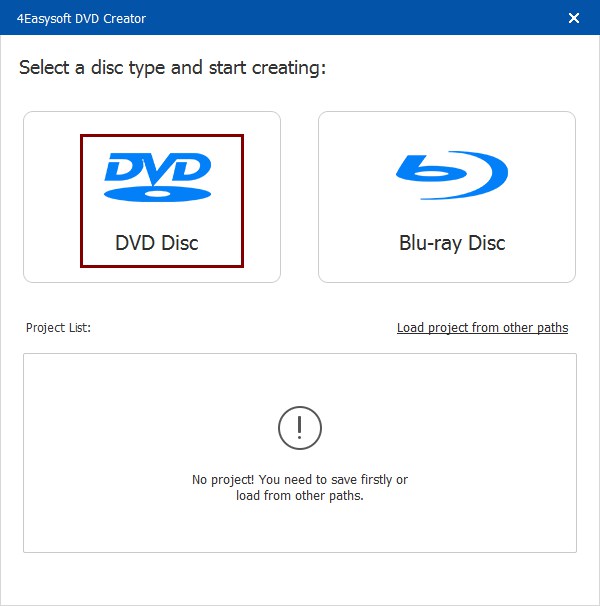
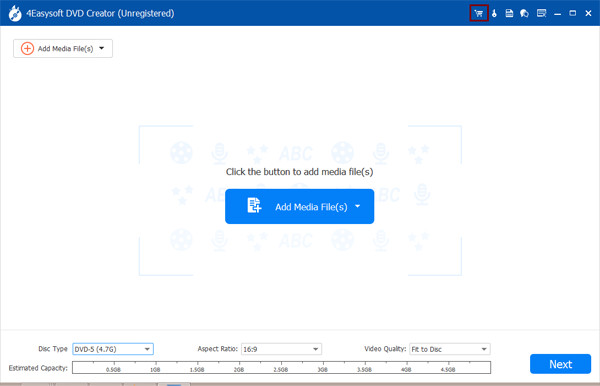
Step 2Next, click the "Add Media Files" button to import the YouTube videos you want to burn to DVD. Once you import all the videos you want to burn, click the "Next" button.
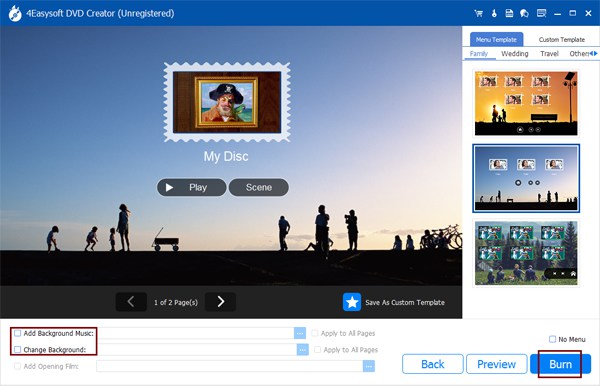
Step 3Then, choose your desired menu theme templates from the right pane for your DVD’s navigation. You can also customize your template with your preferred background and title.
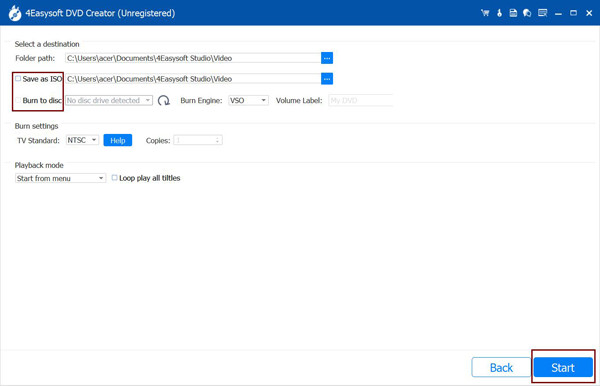
Step 4Once you finish the above setups, click the "Burn" button. Then, you can change the storage path, burn settings, and select playback mode. Lastly, click the "Start" button.
Online Tools to Burn YouTube to DVD [Quality Loss]
Apart from using a downloadable tool, you can also use online tools to burn YouTube to DVD. In this part, you’ll see the three best online tools on the market. So, without further delay, explore each of them below!
1. YouTube-DVD
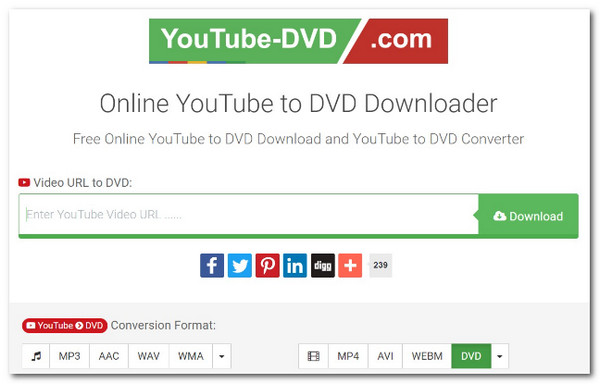
The first online tool you can use as a YouTube-to-DVD converter is YouTube-DVD. This tool is a YouTube-to-DVD downloader that offers free media conversion. It enables you to acquire content using a URL and convert it into commonly used digital formats. However, unlike the first tool, this tool can’t keep the original high-quality YouTube video. Now, if you still want to try this one, here are the steps on how to burn YouTube videos to DVD using this tool:
Step 1Access the YouTube-DVD.com website and paste the URL of the video you wish to burn to the DVD below. Then, select an output format and click the "Download" button.
Step 2Then, wait until the tool completely downloads the YouTube video. Once done, you can access the downloaded file in the download folder.
2. SaveFrom.net
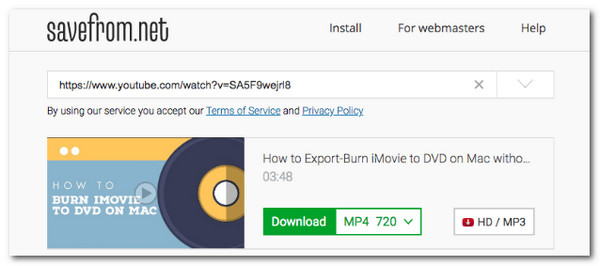
The last online YouTube to DVD tool recommendation is SaveFrom.net. Like the other online tools above, SaveFrom.net lets you download various YouTube videos and convert/burn them to a digital format supported by DVDs. However, with this online tool, you can only have a lower quality of videos and offer too limited features. Now, if you are curious how SaveFrom.net does the job for you, here are the steps you should check:
Step 1Access the SaveFrom.net website, paste the YouTube video URL on the blank box, and click the "Enter" button.
Step 2After that, choose an output format and click "Download" to start the YouTube to DVD burning/downloading process.
FAQs
-
1. How many YouTube videos can I burn on a single standard DVD?
Single-layer DVDs can hold up to 4.7GB of data to hold one or more two-hour YouTube videos. However, if the quality of the YouTube video is low, the DVD can have 4 to 5 hours of video.
-
2. Can I burn YouTube videos to CD?
No. You can’t burn YouTube videos to CDs because they are primarily designed to store audio or document files. Moreover, standard CDs have a much lower storage capacity than DVDs.
-
3. What would be the best format to convert a YouTube video before burning it on a DVD?
MPEG-2 is the best digital format for converting YouTube videos. This format is compatible with different DVD players, including old models.
Conclusion
After reading this page, you now know how to burn YouTube videos to DVD! Through them, you can now watch your favorite YouTube videos on a widescreen TV/DVD player or back them up! Among the tools mentioned above, the professional 4Easysoft DVD Creator tool is the one that can provide you with the best DVD-burning experience and high-quality output. These tool’s features can accommodate all of your DVD-burning needs. So, start acquiring all of the YouTube videos you wish to preserve and use this tool to burn them on DVD!
100% Secure
100% Secure
